Step 2: Review Placement Applications & Sign Required Forms (if applicable)
Review/Approve Placements from Dashboard
To easily approve placement applications submitted by trainees directly from the dashboard, take the following steps:
-
On the dashboard, click on the Placements tab. A red icon will be displayed with the number of placement applications ready for approval.

- On the Dashboard, the Placements tab will show a notification icon.
-
Click on the Placements tab and click Start for each agreement on your trainee’s application.

-
Placement Application Page
To get a more complete overview of you Trainee's placement application progress you may wish to view the Placement Application Page
- On the main menu, click on Supervision > Placement Applications.
💡 Tip: On the Placement Applications page, filter placement applications by their status, recurrence, or by search. Typically, the 'Ready' forms are reviewed first.
- Approved: Applications that have already been approved
- Ready: Applications that have all forms completed and are ready for review/approval.
- Submitted: Applications that a trainee has made, but has a missing form.
- On the Placement Applications page, select the desired placement application.
- On the Placement Application Details page, review student, supervision site, and supervisor information.

💡Tip: The student profile, supervisor profile, and compass icons may be clicked and will show their detail pages.
- In the Required Forms section, all forms that have been completed will have a green check mark, and all forms that have NOT been completed will have a red X. To view any submitted forms, click on Submitted (xx/xx/xxxx).

When a red X is present in the Application Status section, refer back to step 3 or 4 to review a training, supervisor, and/or required form that needs to be addressed.
💡Tip: At the bottom of the placement application is a + Add a Comment. This may be useful if an application is missing any items. Messages will send an e-mail notification to the student, supervisor, and assigned faculty that a comment has been left.
Training Plan Details
The Training Plan details page provides a good luck to review any students who are missing a placement application.
- On the main menu, click on Supervision > Training Plans
- On the Training Plans page, select the Training Plan you wish to review.
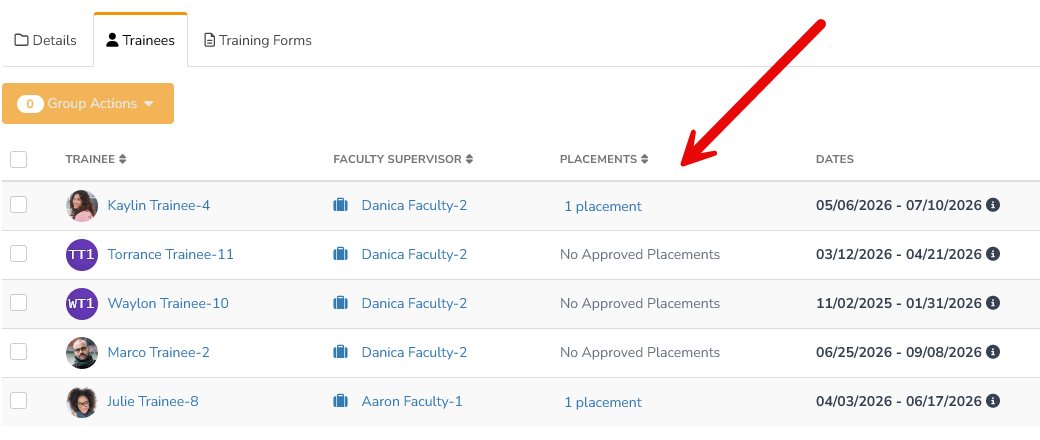
- On the Training Plan Details page, select "Trainees"
-
The Trainee table will show all Trainee's in a training plan along with any approved placements.