
Training Tasks: Creating, Viewing, and Editing Tasks
Training Tasks allow you to assign required tasks to users within a training plan. You can create tasks as either Evaluations, which are linked to a specific evaluation, or General Tasks. Follow the steps below to create a training task:
Creating Training Tasks
- From the Dashboard, select the Training Tasks tab.
- In the Viewing Tasks For drop-down list, select the training plan to which you want to assign the task.
- Click Manage Tasks for the selected training plan.
- Click Create Training Task.
- In the Type drop-down list, select Evaluation or General.
- If you selected Evaluation, choose the evaluation form to assign.
- If you selected General, enter a title, description, or optional uploaded file.
- In the Due drop-down list, select Fixed Date, Weekly, or Number of Submissions.
- Select the Assigned Day: the day the task appears on the assignee's dashboard (a specific date for Fixed Date tasks, or a day of the week for Weekly tasks). The assignee is notified on the assigned day, and the task is included in weekly updates to Supervisors, if applicable.
- Select the Due Day: the day the task is due. The assignee is notified on the due day, and the task is included in weekly updates to Supervisors, if applicable.
- Repeat Until: (Weekly Only) The date after which weekly tasks stop generating.
- Click Submit.
💡 You may also navigate to Training Tasks by going to the Training Plan Details page and viewing the Training Tasks tab. The steps above are just one method of navigating to this location.
Editing or Deleting Training Tasks
You can update existing Training Tasks to adjust task details, assignment settings, or due dates and schedules.
- From the Dashboard, select the Training Tasks tab.
- In the Viewing Tasks For drop-down list, select the training plan to which you want to assign the task.
- Click Manage Tasks for the selected training plan.
- On the Training Plan Details page, click the ellipsis (⋮) next to the task, then select Edit Training Task.
- Update the required training task fields as needed.
- If you wish to delete the task, select the delete button from the edit modal.
-
Click Save to apply the changes.
Viewing Training Tasks
The Training Tasks tab provides a central location to view and manage assigned tasks, monitor progress, and review task statuses. From here, the status of the task, view task details, track submissions, and manage individual user assignments.
- From the Dashboard, select the Training Tasks tab.
- By default, the Current Tasks view is displayed. If any tasks are due immediately, the Due Now view is displayed instead, and a red notification badge appears on the Training Tasks tab.
- Select the task you want to view. The Task Progress modal opens.
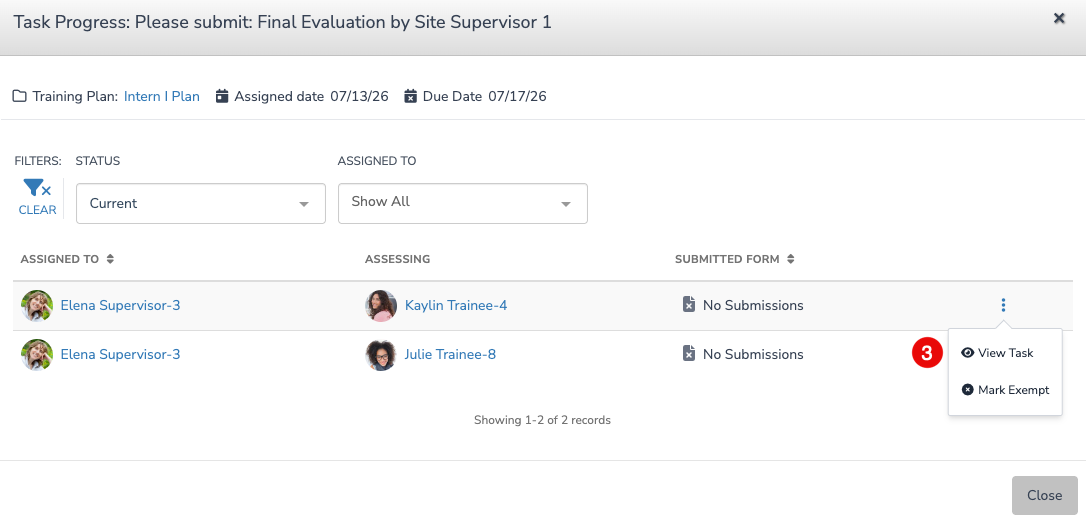
- Click the ellipsis (⋮) next to the assignee, then select one of the following:
- View Task to open the Task Details page, where you can view the associated form.
- Mark Exempt to exempt the assignee from completing the selected task.